
CC-Switch
CC-Switch is a graphical tool for managing AI interface configuration. It can manage provider settings and API keys for multiple Agent clients in one place, including mainstream AI coding assistants such as Claude Code, Codex, and OpenCode.
Installation
Open the latest release page and download the Windows installer (
.msirecommended).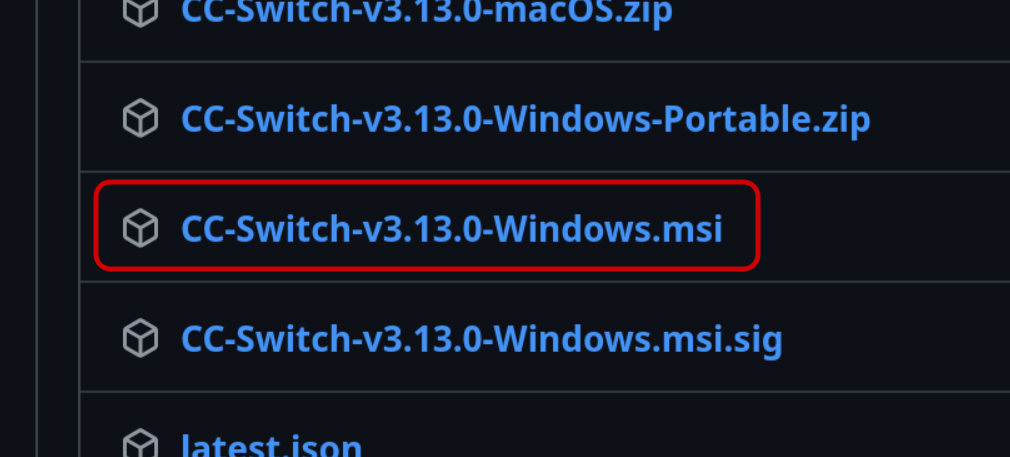
After the download finishes, double-click the installer.
Follow the installer wizard to complete installation.
Launch
CC-Switchfrom the Start menu.
Configure Unified Provider
Follow Create API Key to get a new API key.
Open
CC-Switch, click the Add button in the upper-right corner, and choose to add a unified provider.Fill in the fields in the configuration window:
textProvider name: flux API URL: https://api.tryflux.net API Key: Flux API keySave the configuration.
CC-Switchwill enable this provider for all related Agent clients.
Claude Max Environment Variables
WARNING
The Claude Max group only accepts the Claude Code client and cannot be used in the Claude app.
If you manage Claude Code through CC-Switch, you can add ENABLE_PROMPT_CACHING_1H to the Claude provider's JSON configuration. When you enable the provider, CC-Switch writes this configuration into Claude Code's settings.json.
This variable enables a 1-hour prompt cache, which is useful for Claude Code sessions that repeatedly carry long context. Other Claude groups do not need it.
App-Specific Provider
- Switch to
Claude Codeat the top ofCC-Switch. - Find the Claude provider card for Flux and click "Edit".
- Add the following to
envin the "Config JSON":
{
  "env": {
    "ENABLE_PROMPT_CACHING_1H": "1"
  }
}
Unified Provider
The unified provider's basic form only contains Name, API Key, API URL, and model configuration, without a separate environment variable field. When using a unified provider:
- First create and sync the unified provider with the flow above.
- Return to the
Claude Codeapp and edit the synced Claude provider. - Add
"ENABLE_PROMPT_CACHING_1H": "1"to the provider's JSONenv. - Save and enable the Claude provider.